
You put the outfit on, pressed play, and your avatar walked off while the clothes stayed behind, hanging in a T-pose in mid-air. Or most of it follows, but the shoes, a sleeve or everything from the knees down stays frozen. Either way, the cause is the same: the outfit’s skeleton never got joined to your avatar’s. This guide explains why that happens, especially when Modular Avatar’s Setup Outfit runs and the outfit’s bones still don’t match, and walks through each repair.
If you are still at the stage of choosing and putting on clothes, the whole process is in how to add clothes to a VRChat avatar. This post is the deep dive for when the clothes are on and refuse to move with you.
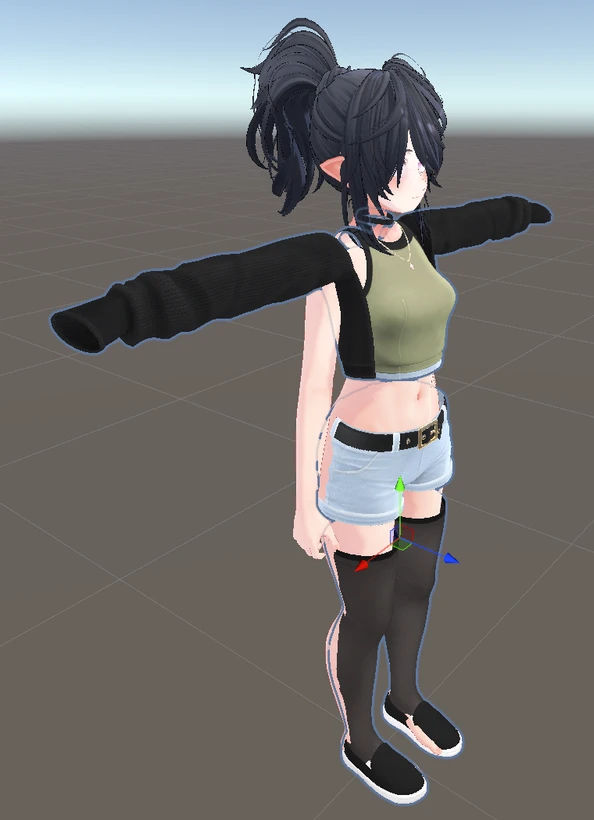
Here is what that looks like in Unity. The avatar’s arms have dropped to its sides, but the jacket’s sleeves are still stretched out in a T-pose, and the stockings no longer line up with the legs:
What is actually happening
Your avatar moves because it has a skeleton, called an armature: a tree of bones starting at the Hips and branching out through the spine, arms, legs, fingers and head. Every visible part of the body is tied to those bones, so when a bone turns, the skin around it follows.
An outfit made for your avatar ships with its own copy of that skeleton, bone for bone. Wearing it means joining the two, so that the outfit’s left knee is driven by your avatar’s left knee, the outfit’s head bone by your head, and so on.
The standard tool for this, Modular Avatar, does the joining with a component called Merge Armature. According to Modular Avatar’s own reference, it walks through the outfit’s bones and looks for the bone in your avatar with the same name. And here is the whole problem in one sentence from those docs: if a match is not found, the outfit’s bone is created as a new child bone under the matching parent instead of being merged.
Nothing errors. The unmatched bone is simply added as an extra bone hanging off your avatar, and since nothing drives it, it never moves. That is exactly what a frozen sleeve or a pair of shoes stuck to the floor is.
So before anything else: this is almost never a bad purchase, and it is not because you did something stupid. Usually it is two creators who spelled a bone differently, or a setup step that ran on the wrong object. If words like armature and bone are new to you, the avatar glossary has them in a line each.
Which failure happened
Match what you see to the likely cause, then jump to the repair.
| What you see | What is going on | Repair |
|---|---|---|
| The whole outfit floats in a T-pose while you move | The armature was never merged at all: the outfit is not inside the avatar, Setup Outfit never ran, or it ran on the wrong object | Run Setup Outfit on the right object |
| Most of it follows, but one region is frozen (knees down, a sleeve, the shoes) | A partial match: those bones are spelled differently from your avatar’s | Make the names match |
| Every bone in the outfit has the same extra word, and nothing follows | A prefix or suffix is stopping every match | Strip the prefix or suffix |
| Hair, horns or an accessory sits at the floor or at the world’s center | The piece has no skeleton to merge, so it needs attaching to one bone | Attach it to a bone |
| Setup Outfit complains it cannot find the Hips | Setup Outfit ran on the avatar or on a mesh instead of the outfit, or the item has no standard armature at all | Run Setup Outfit on the right object, or attach it to a bone |
| It follows, but the pose, size or fit is off | Not a following problem: a fitting problem | See the last section |
Most of these have plain-language entries in LAS troubleshooting too, if you use LAS.
Repairing it by hand in Unity
Everything in this section happens in Unity, with Modular Avatar installed in the project. It is the route most people take, it works, and it is worth understanding even if you end up using a tool that does it for you, one that works without Unity included. The shorter road comes after.
Start over cleanly: run Setup Outfit on the right object
This fixes the most common case, the whole outfit floating.
- Drag the outfit’s prefab into the scene so it sits inside your avatar in the Hierarchy, as a child of the avatar’s top object, not next to it.
- Right-click the outfit’s top object. Not the avatar, and not one of the meshes inside the outfit.
- Choose [ModularAvatar] Setup Outfit.
When it works, it adds a Merge Armature component to the outfit’s armature, and it fills in any prefix or suffix for you. Enter play mode and move a bone of the avatar to check the outfit follows.
If Setup Outfit refuses, saying it cannot find the Hips, it usually means the object you right-clicked is not the outfit’s top object. If you are sure it is, the item probably has no standard armature of its own, which is the “no skeleton” case further down.
Make the names match
This is the fix every forum answer gives in one sentence (“make the bone names match”), written out as a procedure.
- Expand your avatar’s armature in the Hierarchy, and expand the outfit’s armature next to it.
- Walk down both trees from the Hips, comparing the names bone by bone: Hips, Spine, Chest, then each leg and arm.
- Wherever the outfit’s bone is spelled differently from the avatar’s (
UpperLeg.LagainstUpper_Leg_L, orKnee_LagainstLowerLeg_L), rename the outfit’s bone to the avatar’s spelling.
Before renaming by hand, try the shortcut: the Merge Armature component has an Adjust bone names to match target button, which tries to rename the outfit’s bones to match the avatar it is attached to. Press it, then check the bones that were frozen.
One rule matters: always rename the outfit, never the avatar. Everything else on your avatar, its animations, its physics and every other outfit, depends on the avatar’s own names.
When every bone has the same extra word in it
Sometimes every bone in the outfit reads something like Dress_Hips, Dress_Spine, Dress_Chest. That looks alarming, but it is the easiest case. Merge Armature can remove a prefix or a suffix from each bone before looking for its match, and it has a field for each.
Setup Outfit normally fills these in on its own. If it guessed wrong, type the extra word into the prefix field (or the suffix field if it is at the end), including any underscore, and check again. The word has to be the same on every bone meant to merge. Bones meant to stay separate, like a skirt’s own chain, keep their full names and are added as new bones, which is correct for them.
Pieces with no skeleton of their own
Hair, horns, halos, weapons and most accessories have nothing to merge. They follow one part of the body, so they need attaching to a single bone instead. In Modular Avatar that is the Bone Proxy component: add it to the piece and point it at the bone it should follow, usually the Head for hair and the Hips or a hand for accessories.
There is one advanced case worth knowing exists. On an unusual avatar rig, Setup Outfit can fail to find a bone that is really there, such as legs that do not sit where it expects. The workaround circulating in the Japanese community is to duplicate the avatar bone it cannot find, place the copy where the tool expects it, and point a Bone Proxy from the copy at the original. It works, and it is genuinely fiddly.
That is where most people stop, and it is a reasonable place to stop. If you have reached the point of duplicating bones, asking someone who has done it before is faster than guessing.
Wearing an outfit in LAS instead
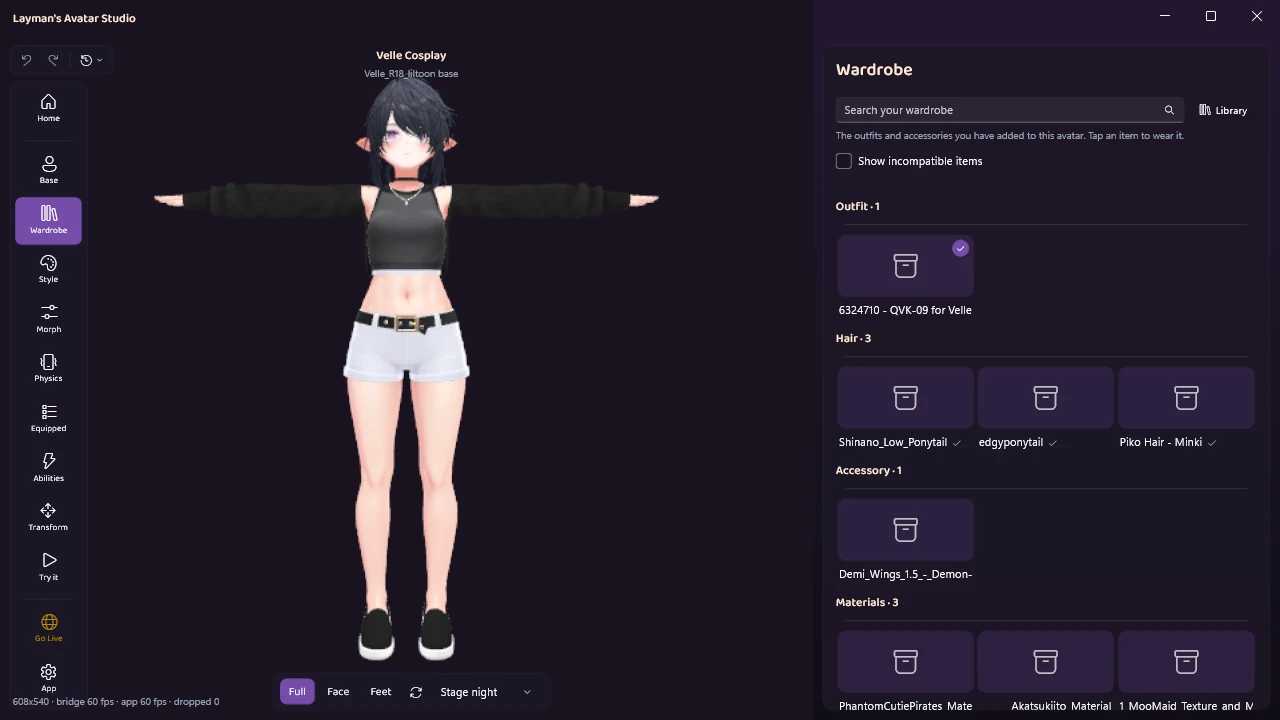
Layman’s Avatar Studio does the same job in the app instead of by hand. It does not replace Modular Avatar: it runs Modular Avatar’s own Setup Outfit, on the right object, every time. Here is what that looks like with Velle Cosplay.
Import it and wear it. When you import a purchase, LAS works out what kind of item it is (a base, an outfit, hair, an accessory, a texture set and so on) and asks you when it is not sure. In Wardrobe, click an outfit, hair or accessory to wear it and click it again to take it off. Worn items stack, so you can combine an outfit with hair and accessories. After a short fitting step, the viewport shows the item on the body. The steps are also in the four-step overview.
The joining happens for you. For an outfit with a standard skeleton, LAS runs Setup Outfit itself. Items that already set themselves up with Modular Avatar or VRCFury keep their own setup. The floating T-pose from the top of this post comes from that step being skipped or run on the wrong object, so wearing through LAS does not produce it. LAS uses Modular Avatar’s own name matching, so it is exactly as good at matching bones as Setup Outfit is, which for an outfit made for your base is the normal case.
Pieces with no setup get a home. Rigged hair and accessories that ship nothing telling them where to go are attached automatically, hair to the head and everything else to the hips, and a notice says where each one went, with an undo right there. A rigid prop with no bones at all is simply placed where its creator put it.
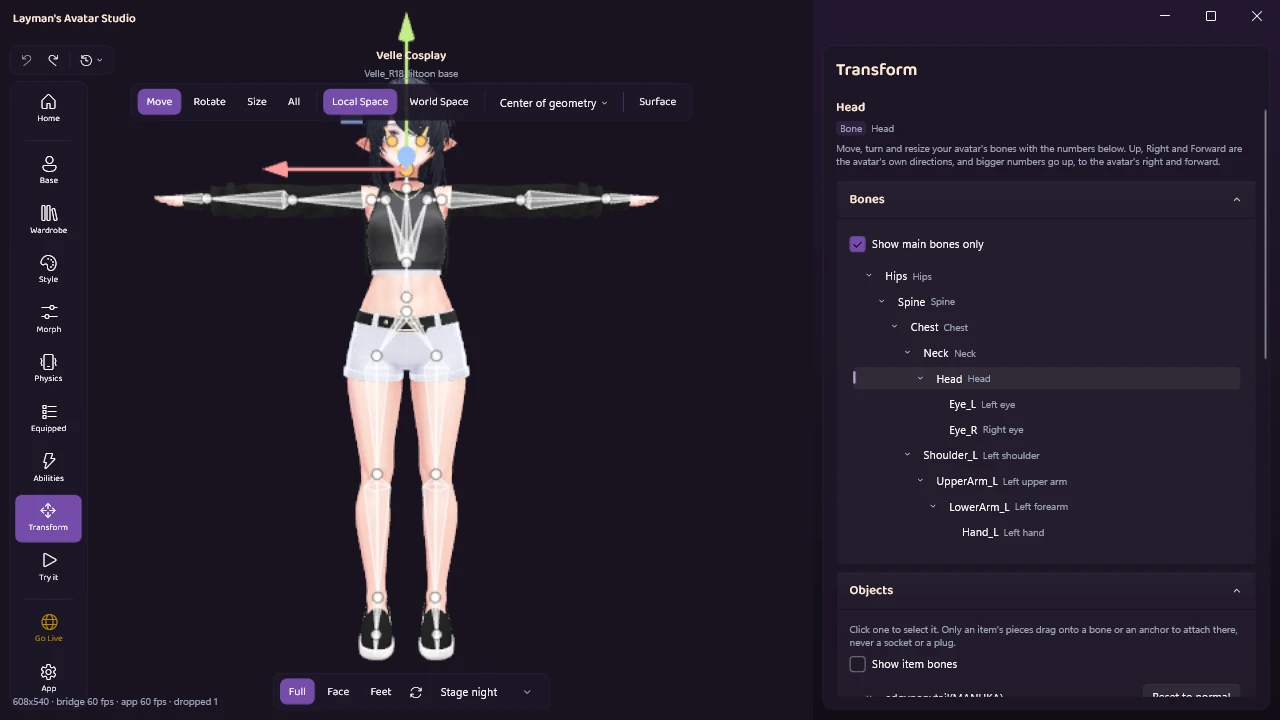
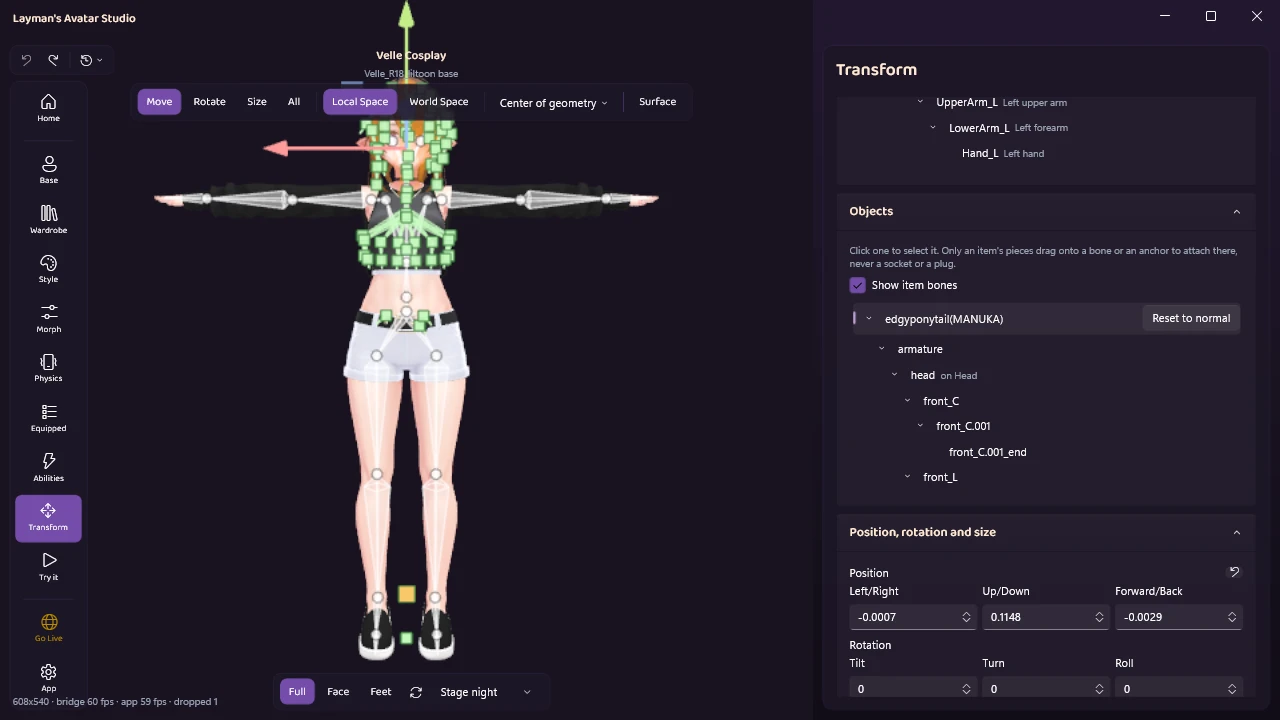
See every bone by name. Transform shows your avatar’s skeleton as a tree. Each bone keeps its real name, with a plain label beside the main ones, such as Head or Left hand.
See what every piece is attached to. The Objects list below it shows every piece on the avatar and what it follows. An outfit that merged correctly says “merges into the skeleton”, and a hair piece attached to one bone says “on Head”. You can drag a piece onto another bone or an anchor, or change it in the Attached to picker.
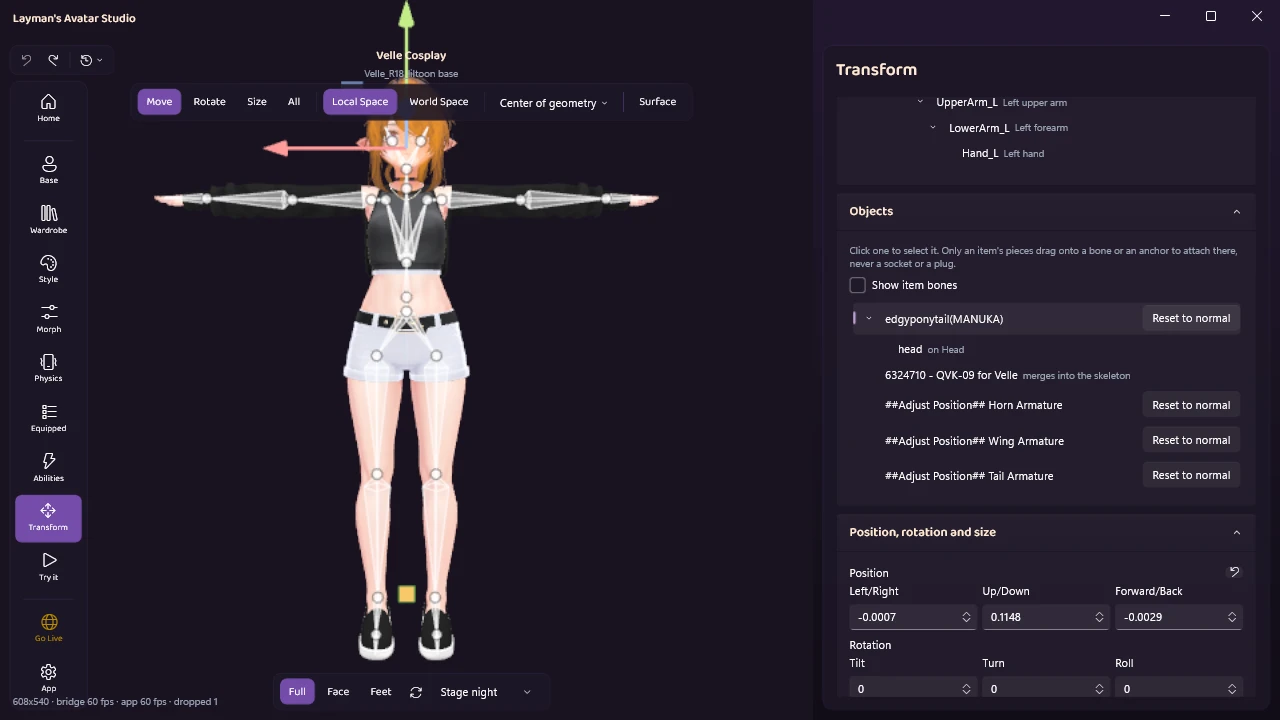
Look inside an item. Tick Show item bones and an item’s own bones appear in the list and on the avatar, so a ponytail chain is something you can select and move like any other bone. Bones that are merged into your avatar’s own are marked Locked, because they follow your skeleton and edits to them would be overwritten.
Undo is one step away. Wearing and taking off are history steps (“Wore” and “Took off” followed by the item’s name), so Ctrl+Z undoes a bad experiment the same way it undoes anything else. The full story of undoing avatar changes has its own post.
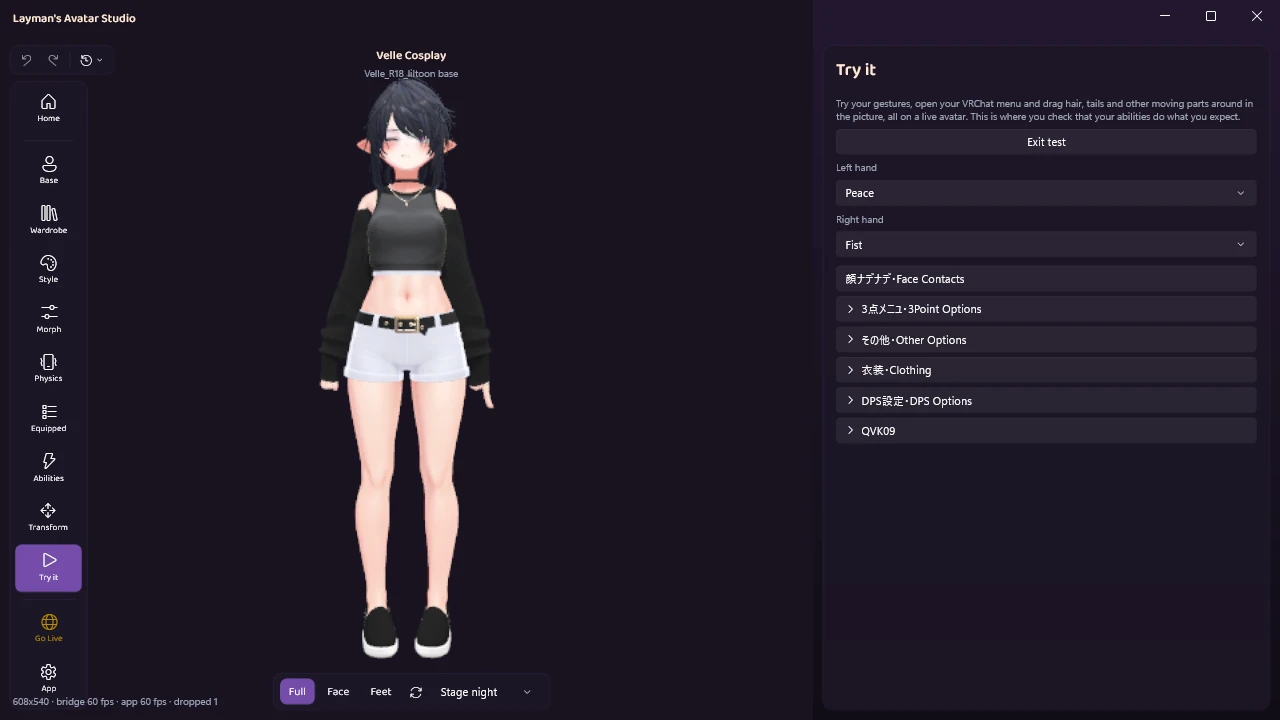
Watch it move before anyone sees it. Try it runs the avatar live: pick gestures for each hand, open the avatar’s own menu, and drag hair and other moving parts right in the picture. That is the check this whole post is about, done before uploading. The Try it docs cover the rest, and the tour shows the other panels.
Nothing here touches the files you bought. LAS keeps its own copy of each download and works on that, and the joining itself happens when the avatar is built for upload. Customizing in LAS covers the rest of the Studio.
The outfits nobody can automate
Honesty section, and it is not optional. A small number of products ship no standard outfit skeleton and do not set themselves up with Modular Avatar either. When LAS cannot fit one of those and cannot attach it to a bone, it says so plainly: the item doesn’t have a standard outfit skeleton and may need manual setup in Unity, such as attaching it to a bone. An item with nothing LAS can add at all says so when you try to wear it, and a base avatar that ships no ready-made avatar file is flagged on import with a wrench badge.
If you hit one of these, ask in the Discord before paying anyone for a fix. There is often a simpler route than it looks.
The second limit is fit. An outfit made for a different base is shaped around that base’s body, so it does not sit right on yours out of the box. The community has a dedicated tool for exactly this: MochiFitter (もちふぃった~), a paid Unity tool from the avatar creator Omochi no Biru that reshapes an outfit’s mesh and bone weights from one body to another, with Blender doing the work in the background. It needs a conversion profile for both bases, the one the outfit was made for and yours, which avatar creators and volunteers publish, so it only works where both profiles exist. Results are often close to perfect, but expect some touching up afterwards, and outfit gimmicks and animations do not always survive the conversion. LAS does not run MochiFitter for you. What LAS does is check the item’s intended base against your avatar’s: an outfit made for another base carries a “Made for a different base” badge, and wearing it asks first, warning that it may not fit without manual adjustment in Unity. You can still try it, and sometimes it is close enough. The safer move is checking the supported list on the product page before you buy, which the Booth buying guide walks through.
Following is fixed, but it still looks wrong
A few problems look similar and are not this one. Each has a different fix.
- Your body pokes through the outfit. That is clipping: the body underneath is bigger than the clothes in places. The usual fix is shrinking or hiding the body where the outfit covers it, which many outfits support with shape keys (sliders built into the mesh).
- The outfit sits in a slightly different pose, or at the wrong size. That is fitting. An outfit made in an A-pose (arms angled down) on an avatar in a T-pose, or one made for a different body shape, needs adjusting rather than merging. For an outfit made for another base, that is MochiFitter’s job, covered above.
- The shoes sink into the floor, or the avatar floats. That is height: the outfit’s heels changed where the feet meet the ground. Heel-height settings on the outfit, where it has them, are where to look.
- The outfit follows, but the avatar’s rank dropped. Outfits bring their own physics chains and materials. The Very Poor fix guide explains what each one costs.
Quick answers
Does wearing an outfit change the files I bought? No. In Unity you work on imported copies, and LAS keeps its own copy of each download and never touches the original.
Do I have to redo this every time I change outfits? In Unity, each new outfit needs its own Setup Outfit, once. In LAS, it happens every time you wear something.
Can I wear two outfits at once? Yes, and they will both follow. Whether they look right together is a fitting question: overlapping pieces clip.
Why did it work for my friend on the same avatar? Usually a different version of the avatar or the outfit, with different bone names, or Setup Outfit run on a different object. Compare the two hierarchies from the Hips down.
Does any of this survive the upload? Yes. The joining is set up when you wear the outfit and carried out when the avatar is built, so what you uploaded is what everyone sees. If the build itself fails, the upload errors guide decodes the messages, and the LAS questions and answers cover the rest.
Put an outfit on without the repair
LAS is in Early Access with a free plan. Download it for free, import an outfit you already own, and wear it on your avatar with one click. The plans show what each one includes.
If an outfit needs hands, LAS will tell you rather than guess. Bring it to the Discord and we will help you work out the route.