
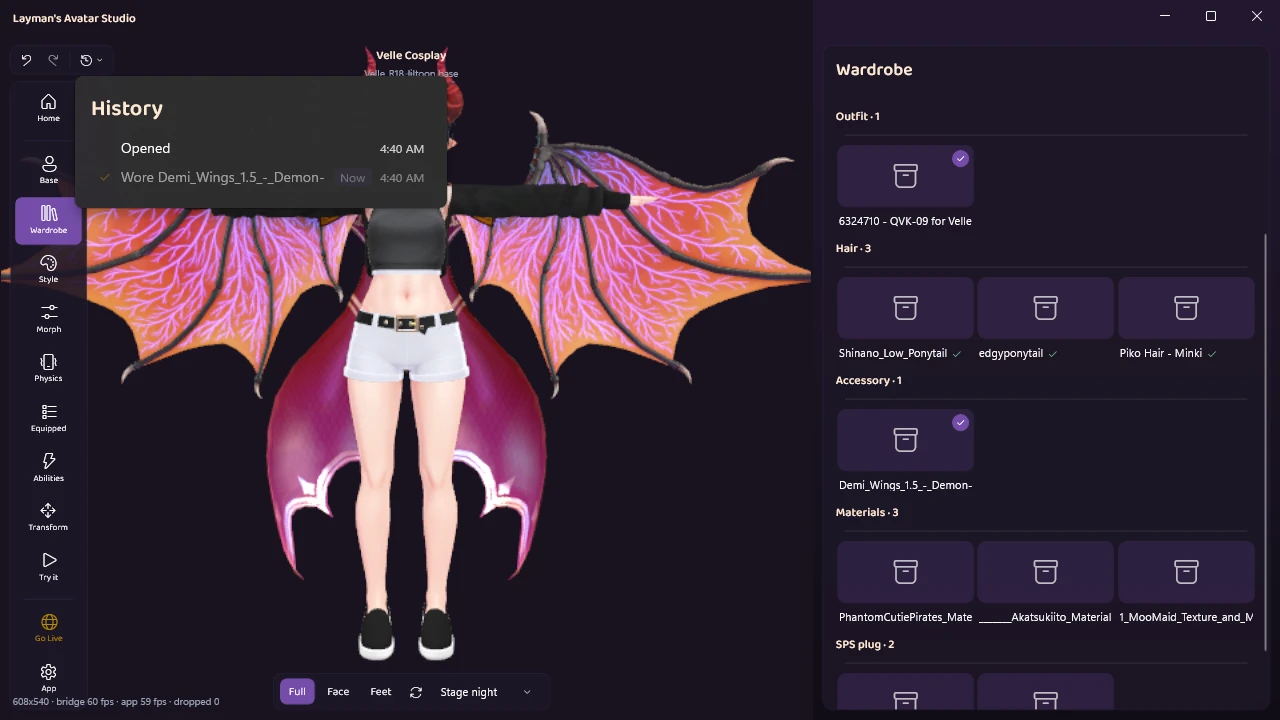
Here is an avatar that works:
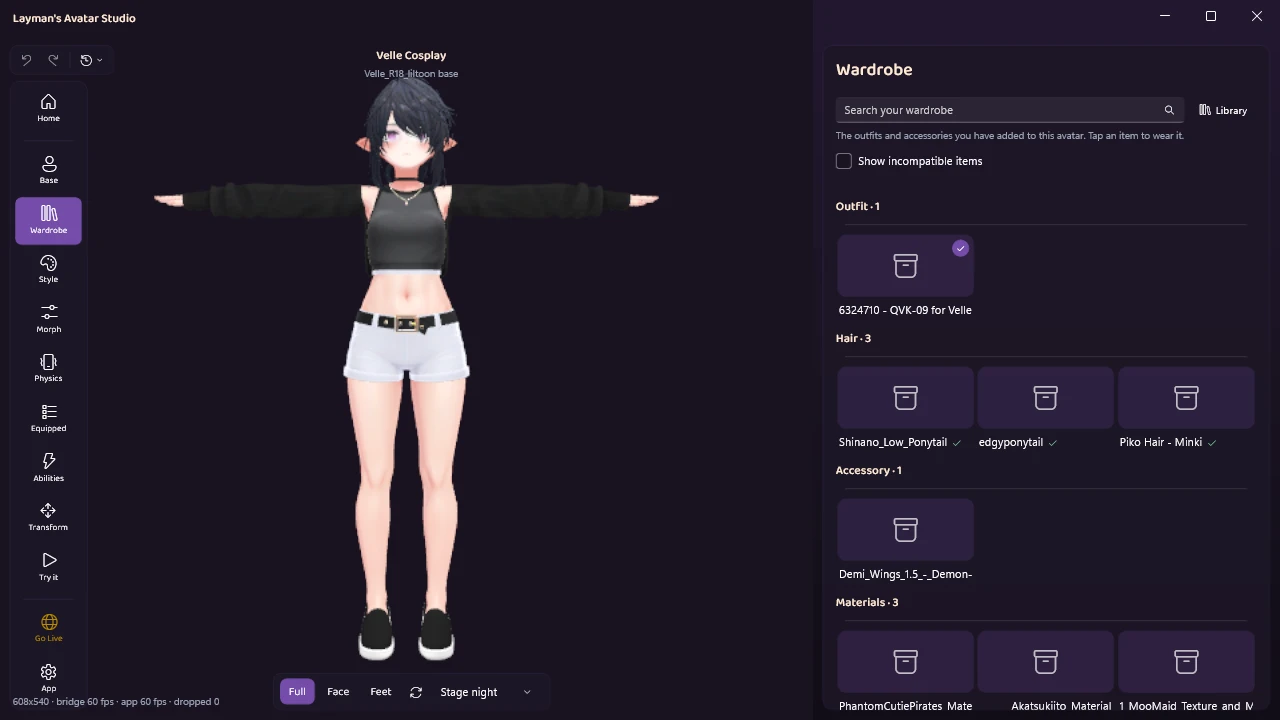
Here is the same avatar a few seconds later, trying on a pair of demon wings, live, before anything was uploaded:
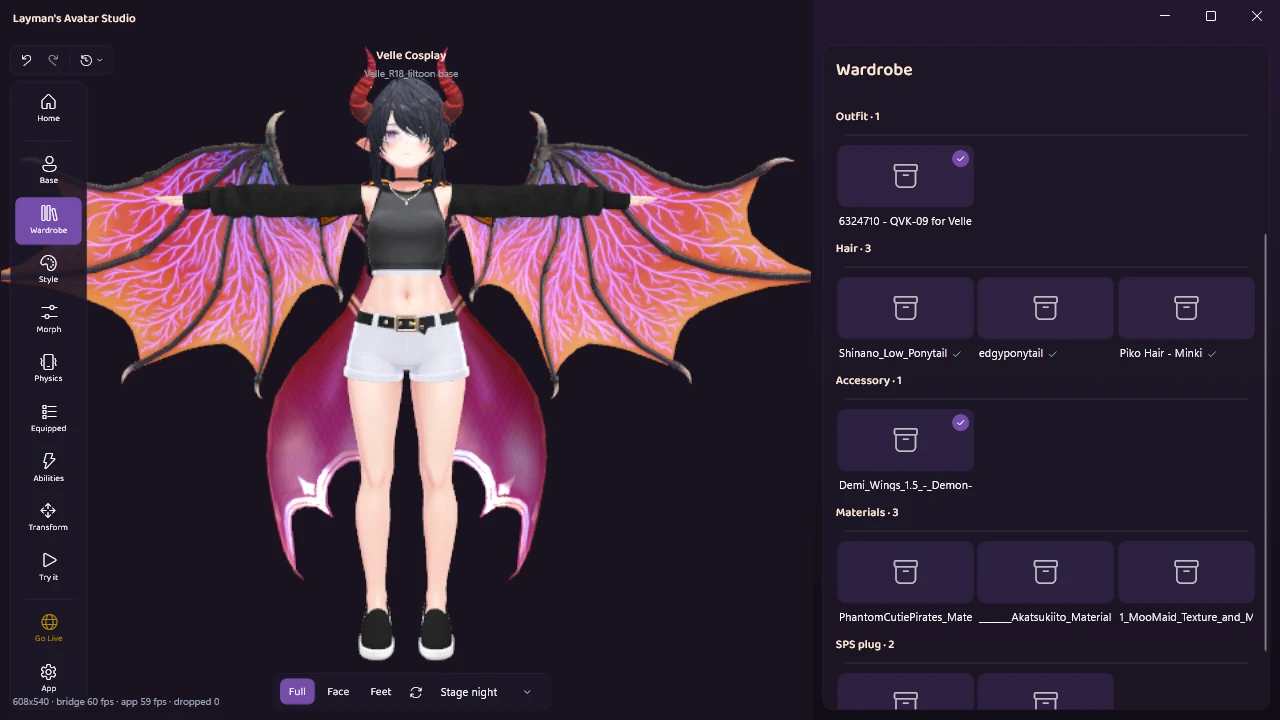
And here it is again after one click in the history list took the wings back off, with no project copies, no backup ZIP and nothing sent to VRChat:
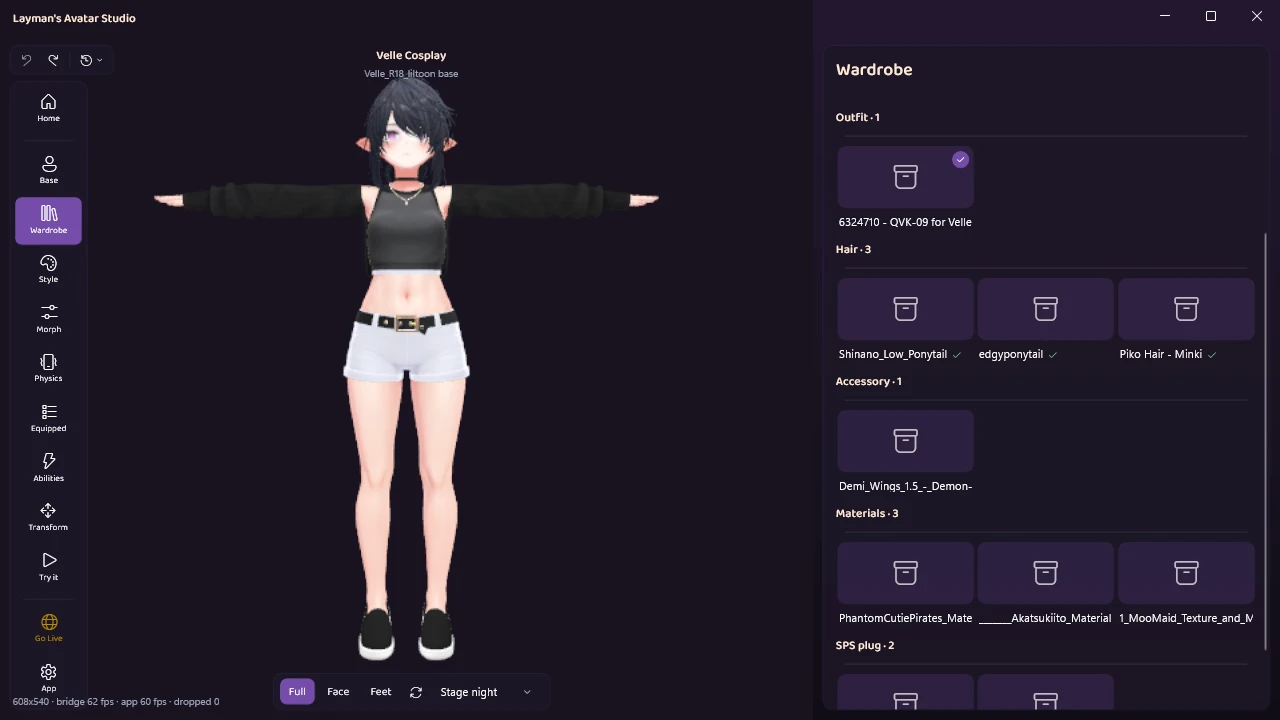
This post covers how to test a VRChat avatar without uploading it, every way that exists, and then the half nobody writes about: getting back to the version that worked when the test shows the change was a mistake. Two quick clarifications first. Testing your own avatar is not the same thing as the avatar testing worlds you can visit in VRChat. And if a Build & Test guide you found talks about Udon and scenes, it is the one for worlds, not avatars.
Why this question is really two questions
In English, people ask how to test an avatar without uploading it. In Japanese, people ask how to back up an avatar project and restore it. Those sound like different questions, and they are the same fear: an avatar that works today, a change you want to make, and no safe way to find out what the change does.
So there are two jobs. Preview: see the change moving before anyone else does. Get back: return to the working version if the preview shows a mistake. Every tool, including editing a VRChat avatar in LAS, is really an answer to one or both.
The four ways to see your avatar before anyone else does
Build & Test, VRChat’s own local upload
This is the official answer. In the VRChat SDK’s builder, Build & Test builds the avatar and copies it to your own PC instead of VRChat’s servers. It then shows up in VRChat’s Avatars menu under SDK Test Avatars, and only you can see it: to everyone else, you still look like the avatar you were wearing before you switched. If you launch VRChat with the --watch-avatars launch option, it switches you to each new test build automatically. Old test builds are deleted from the SDK’s Content Manager tab.
The big advantage is that it is the real game: real world lighting, real hands, real everything. The cost is that it all goes through Unity and the SDK, and every change means a rebuild and a trip back into VRChat. If a build fails on the way, the errors people hit when uploading apply to Build & Test too.
The in-editor emulators
Community tools such as Gesture Manager and Av3Emulator run your avatar inside Unity’s play mode, with no VRChat launch at all. You get the expression menu, hand gestures, physics and contacts, right in the editor. The reason people install them is simple: relaunching VRChat for every small check is exactly what everyone is trying to escape.
The cost is setup: Unity, the Creator Companion and the package, installed and working, before any of it helps. Installation guides for these run long for a reason. For anyone already comfortable in Unity, they are the right answer and they are good tools.
Unity’s own preview windows
The scene view and Unity’s animation preview show shapes and poses, but not your menu, your gestures or your toggles working together. This is where “it worked in the editor but not in game” usually starts, which the section after next explains.
A live studio that builds the avatar for you
The fourth route is a tool that does the build and the preview for you, without you working in Unity. LAS is one of these, and it is also a VRChat avatar maker that goes all the way to upload. How that works is further down, and how it differs from the Unity route is on our homepage.
What a preview can and cannot tell you
Every preview route, ours included, shows these truthfully: physics, gestures, your menu, toggles, and shapes. Some things no preview can show:
- How the avatar looks under a world’s lighting. Worlds light avatars their own way.
- Anything that reacts to world audio. AudioLink effects have no music to react to in a preview.
- Face shapes VRChat drives itself. Lip sync and blinking take over certain shapes in game, so edits to those only show while they are idle.
- How other people see a toggle. A toggle that only changes something on your own screen looks perfect in any preview and does nothing for everyone else. The common forum complaint of toggles that “only work in the emulator” or “only work for me” is usually this.
The rule to leave with: a preview catches the wrong ninety percent cheaply, and the last check still belongs in the game. What the Try it panel checks is documented, and if the in-game check shows other people hiding your avatar, that is a performance question, covered in getting an avatar out of Very Poor.
See it move before you upload: Try it
In LAS, open Try it in the rail and press Test avatar. LAS starts Unity’s play mode and builds the avatar with the same VRCFury and Modular Avatar steps an upload runs, so the toggles those tools add are in the test too, down to the icon-only pose menu of GoGo Loco. The only difference from a real upload is that LAS’s own upload optimizations are left out of a test.
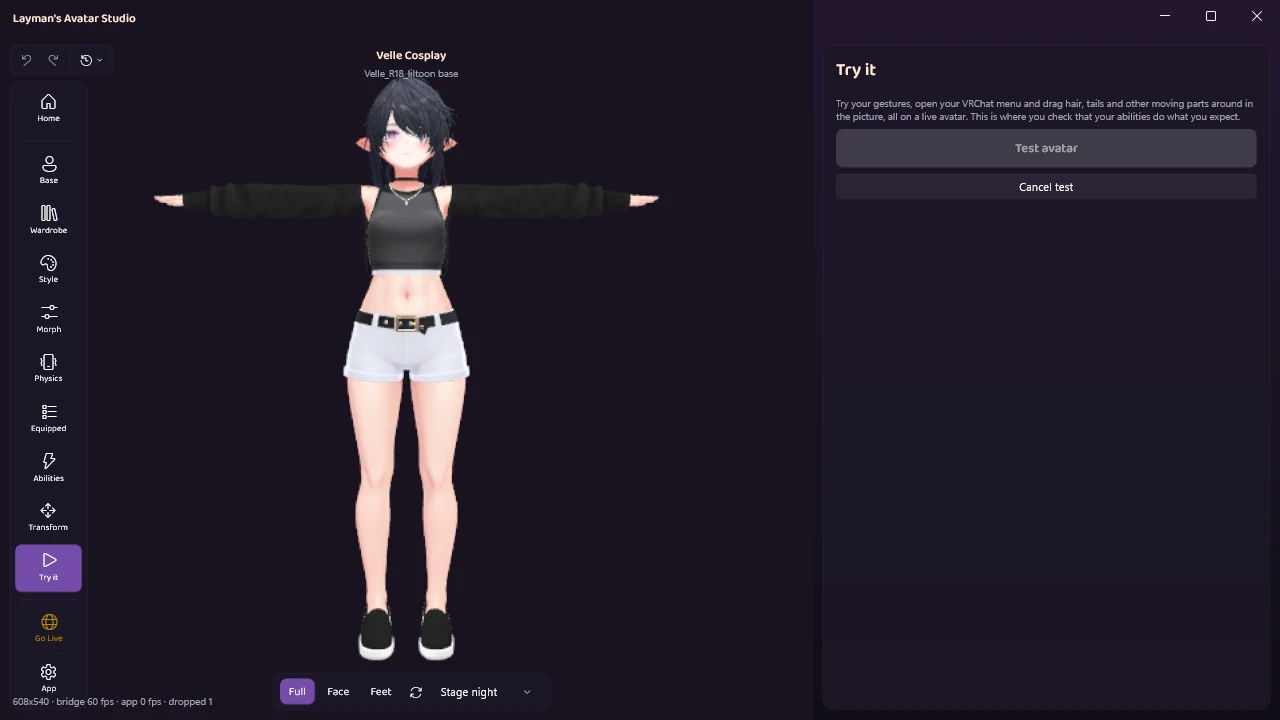
A status line narrates the start, and a Cancel test button is there the whole time. If Unity has to start first, that can take a minute. After that, each test builds the avatar again, which takes roughly 10 to 60 seconds. If the build fails, the test says so straight away with the reason. There is no limit on how often you test.
Gestures. Each hand has its own picker: Neutral, Fist, Open Hand, Point, Peace, Rock and Roll, Gun and Thumbs Up. The avatar’s hands and face follow, as long as the avatar’s own animations use those gestures.
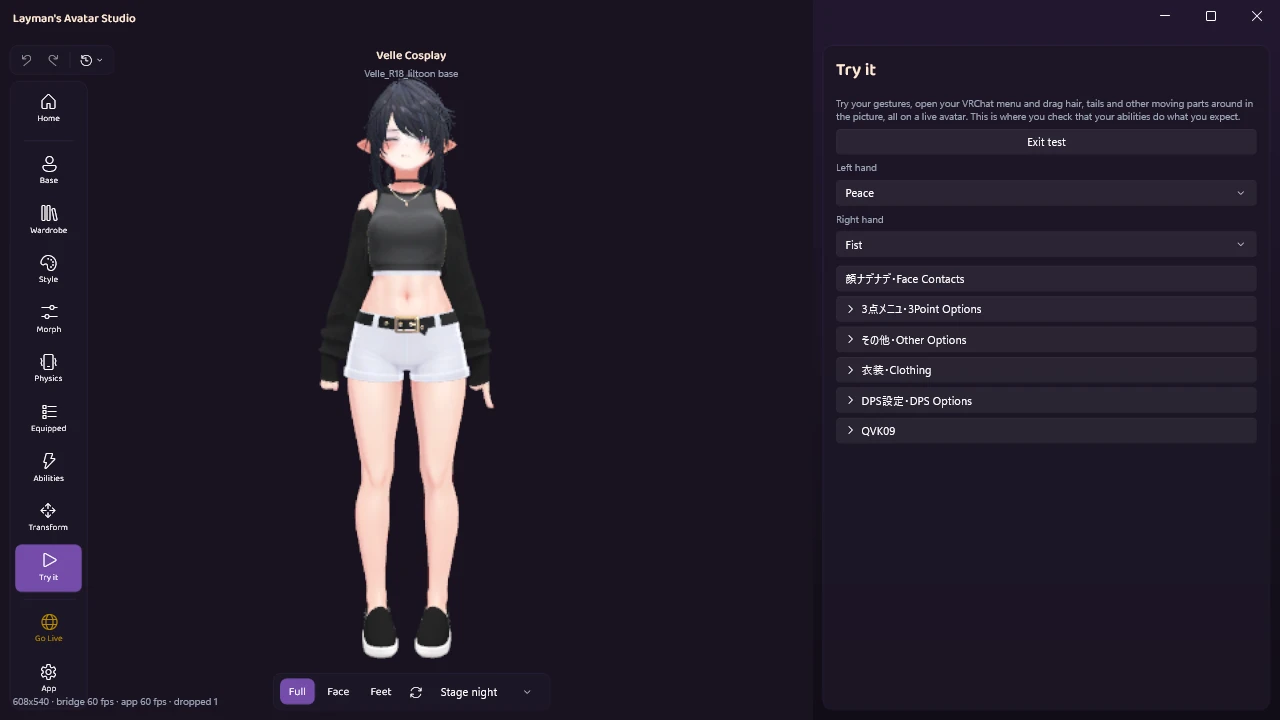
Your VRChat menu. The panel shows the avatar’s real menu, read from the built avatar. Toggles and buttons fire, radial puppets become sliders, and submenus open. Two-axis and four-axis puppets are marked as not supported.
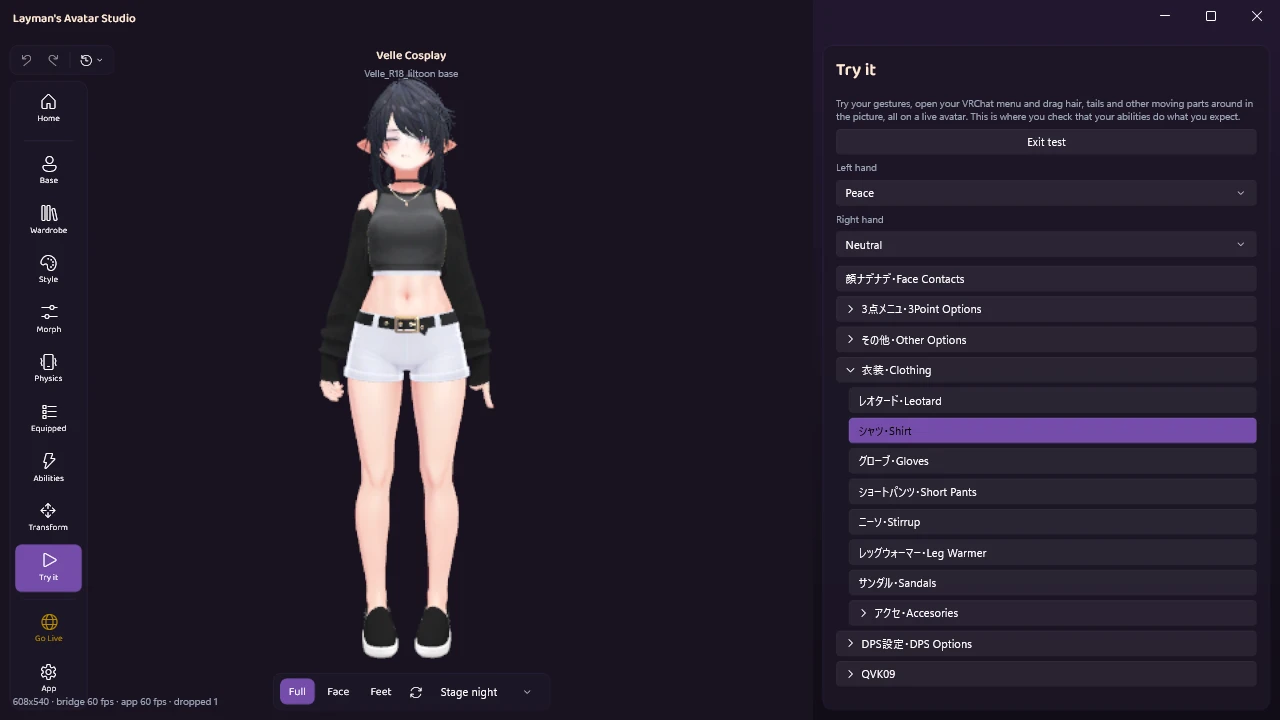
Physics. Move the camera and hair and skirts react. You can also grab physics chains right in the picture and drag them, unless the creator marked a chain as not grabbable.
Editing is paused while a test runs, so press Exit test to go back to changing things. And to be clear about what this is: LAS’s viewport, not the VRChat client. It does not replace a Build & Test or a trip into the game for the final check. It is the fast loop before that check. The tour of the studio and how the whole flow works show where it fits, and when you are ready, Go Live uploads through the official VRChat SDK. Testing never uploads anything.
Getting back to the version that worked
This is the half every guide in both languages skips, and the reason the pictures at the top of this post exist.
LAS remembers the changes you make to an avatar. Undo and redo sit in the top-left corner above the rail: Ctrl+Z undoes, and Ctrl+Y or Ctrl+Shift+Z redoes. The list button beside them opens the history, where every step has a name and a time, such as “Opened”, “Wore Demi_Wings”, “Changed material Face” or “Adjusted the placement of Head”. Click any step to go straight back to it, and forward again.
A few details make it trustworthy:
- A whole drag is one step. Dragging a slider or moving a bone with the gizmo records one step, not a hundred.
- Wearing and taking off are steps. Undo takes an outfit, a base or an accessory back off, or puts it back on, like the wings above.
- The panels follow. After you jump, the panels show the restored values straight away.
And the honest limits, in the same breath:
- The history belongs to this session. It covers each avatar while LAS is running, including after you switch avatars and come back, and it is cleared when you close LAS. It keeps your most recent 64 steps.
- It is a straight line. If you jump back and then make a new change, the steps you had jumped back past are dropped, the way undo works in most apps.
- Finish the move first. If you are in the middle of a drag, the history asks you to finish the move before going back.
The panels and their resets are covered in the customize docs, and wearing things in the first place is its own guide: when an outfit does not follow the body.
The smaller undo: every control has a reset
Most controls also have their own reset, so an experiment on one thing does not need the history at all. Material settings, including colors and sliders, have a “back to the original value” reset. The position, rotation and size groups each have a reset arrow, placed objects have “Reset to normal”, and shape sliders reset too. Reset everything, below the Transform fields, puts every part you moved back the way its creator made it, after asking first.
That is the “I only want this one bit back” answer a project backup can never give. If you are experimenting with colors, recoloring any part with a color wheel shows those controls in action.
When something undoes itself
One case happens on its own. If an item you put on contains a script that breaks Unity’s compile, LAS takes the item’s files back out immediately, so your avatar’s project keeps opening, and tells you so: “A script in the item doesn’t compile, so LAS took the item’s files back out to keep this avatar opening. Nothing was put on your avatar.” Other rare cases like this are covered in the troubleshooting first aid kit.
Why you have less to undo when nothing was overwritten
The thing people back up, in the Unity workflow, is a project full of edits made directly to their avatar’s files. That is why a mistake is scary: the working version was overwritten.
LAS is non-destructive, which means it never modifies your original purchased files. When you import something, LAS keeps its own copy in your library and works on that. The files you downloaded after buying avatars on Booth stay exactly as they were, and upload optimizations only change the copy that is sent to VRChat. There is much less that can be lost when the originals were never touched.
The honest backup routes, if you want one anyway
Backups are still sensible, especially before big changes in Unity. Four routes, from least to most effort:
- The Creator Companion’s Make Backup. In the VRChat Creator Companion, Make Backup saves a ZIP of the project to
%LocalAppData%\VRChatCreatorCompanion\Project Backups(you can change the location in Settings, under General). To restore, extract the ZIP anywhere and use “Add existing” project. - Copying the project folder yourself. Close Unity, copy or ZIP the whole folder. Bigger, but complete and simple.
- Duplicating the project before a risky change. This is what most people actually do: one copy per experiment.
- Version control, such as Git. The only route that gives you real per-change history, where you can undo one change and keep the rest. It is also a big thing to learn when your last install was an outfit.
All four are copies of a project. They protect you, and they are worth having, but none of them shows you the change first, and none of them can give you back just one change. Paid restore tools exist in the community for exactly this fear, which says a lot about how common it is.
Why this fills your drive
A Unity avatar project is several gigabytes. A duplicate before every experiment is several gigabytes again, and backup ZIPs pile up in a folder nobody looks at. That habit, more than any single avatar, is what fills a drive.
To be straight about LAS: it also builds on Unity, with one Unity project per avatar under the hood, which is also what people recommend doing by hand. So an avatar in LAS takes about the same space as one Unity project, and you should still keep several gigabytes free. What changes is the habit: with a named history for each change, you do not need a copy per experiment. If that sounds useful, you can download the free app and see.
Quick answers
Does testing in LAS upload anything? No. Try it runs on your PC. Nothing goes to VRChat until you upload from Go Live.
Can I still use Build & Test or an emulator? Yes, nothing stops you, and a final check in game is always worth doing.
If I undo a change, does it change the files I bought? Those files were never changed to begin with. Undo moves the avatar back to an earlier state inside LAS.
Does my history survive closing LAS? No. The list of steps lasts while LAS is running. The avatar keeps every change you made, only the list is cleared.
Do I still need a backup? For the avatar you build in LAS, the history covers the “I just broke it” case and the originals are never touched. A backup is still sensible insurance against a failing drive, like for any files you care about.
What if a test fails to start? If the avatar cannot be built, the test says so straight away with the reason. If Unity closes during a test, LAS offers Try again. More in the LAS questions and answers.
Try it on your own avatar
LAS is out in Early Access with a Free plan. Download it, open your avatar, press Test avatar, and make a change you would never have dared to make before. See what the Free plan includes.
If something does not undo the way you expected, tell us in the Discord.