
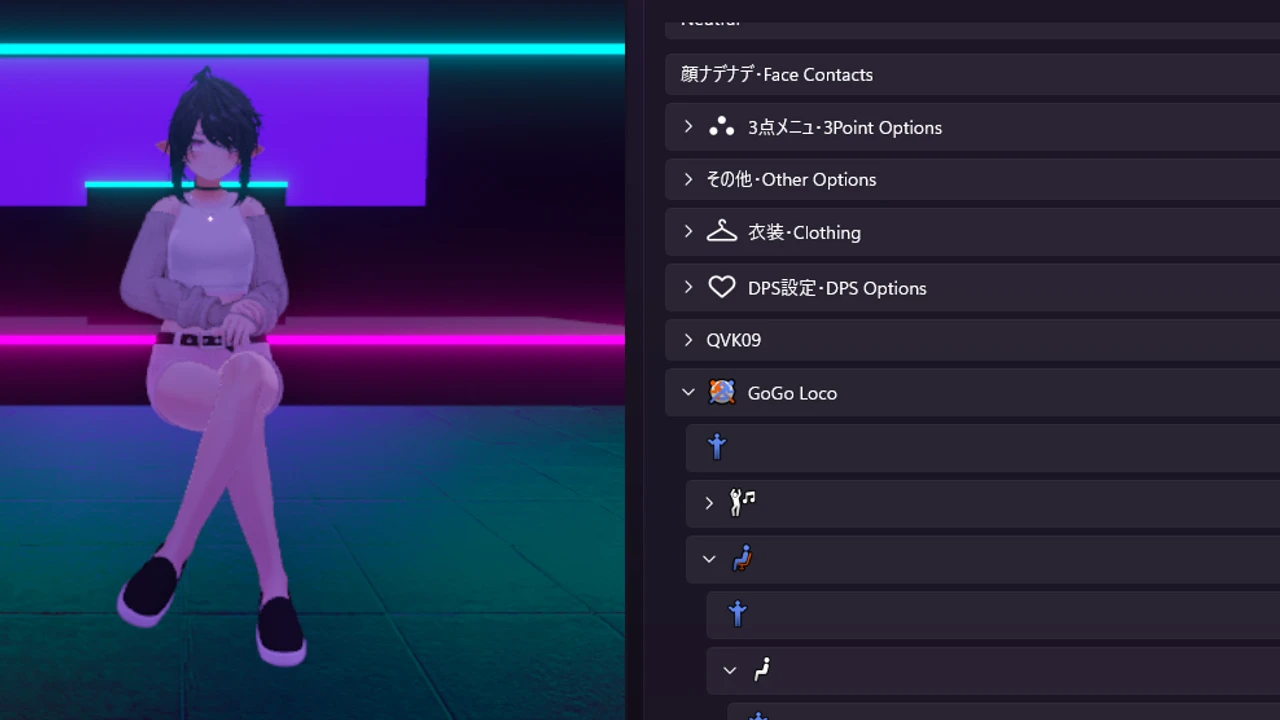
GoGo Loco is the reason half the avatars in a VRChat world are sitting on nothing, lying on the floor in a pose you did not know an avatar could hold, or floating somewhere near the ceiling. It is free, it works on almost any humanoid avatar, and “how do I install GoGo Loco” is one of the most asked avatar questions on the VRChat forums.
Here is the short answer. In Unity, you add GoGo Loco’s package to your avatar’s project and drop its VRCFury prefab onto the avatar. In Layman’s Avatar Studio (LAS), you open the Abilities panel and pick Go All or Go Beyond from one dropdown, with no Unity window at all.
This guide covers both, plus the parts the quick video tutorials skip: which version to pick, what to do when your avatar already came with GoGo Loco, what it costs in expression memory, and what it replaces.
What GoGo Loco adds
GoGo Loco is a locomotion and pose system made by Franada. Its own site, gogoloco.net, started from one question: “Can I sit anywhere?” Today it adds a submenu to your avatar’s menu with:
- Sit and lie down anywhere, in several poses, with or without a chair in the world. Poses can be mirrored.
- Play space height, a radial that lifts you up or lowers you down, so a small avatar can stand at eye level with everyone else.
- Stationary, which pins you in place while you move around in real life, handy for photos.
- Emotes and dances, standing and seated.
- AFK and idle swaps, different standing, crouching and lying idles to choose from.
- A few extras for desktop players and specific game worlds.
It is free on Booth, Gumroad and GitHub (Booth also has an optional tip version), and it runs on PC, Android (Quest) and iOS. Creators are allowed to include it with an avatar they sell, which matters later in this guide.
Go All or Go Beyond?
GoGo Loco comes in two versions, and the choice is simpler than the names suggest:
| Go All | Go Beyond | |
|---|---|---|
| Sit, lie, poses, emotes, AFK, play space | Yes | Yes |
| Flying and dash | No | Yes |
| Expression memory | 16 bits | 17 bits |
Go Beyond is Go All with flying added. If you want to fly, pick Beyond. If you have never missed flying, Go All is the lighter choice. Both use the same animations, so nothing else changes between them.
The memory numbers are GoGo Loco’s own, and we measured the same thing: picking Go All on our test avatar in LAS moved its expression memory from 88 to 104 bits. VRChat gives every avatar 256 bits for its menu, so GoGo Loco fits on most avatars with room to spare.
Your avatar may already have it
Before installing anything, open your avatar’s menu in VRChat and look for a GoGo Loco entry. Because creators may include it, many avatars you buy on Booth come with it already installed, sometimes as Go Beyond.
This is where the most common GoGo Loco problem starts: someone follows a tutorial, adds a second copy on top of the one the avatar shipped with, and now two copies fight over the same menu, the same memory and the same animations. If your avatar already has it and it works, you are done.
The usual install, in Unity
If you already build avatars in Unity, this is the route every tutorial shows. It takes a few minutes once you know where things are. It assumes a Unity project for your avatar made with VRChat’s Creator Companion (VCC), with VRCFury added to it.
- On gogoloco.net, use Download (using VCC). That adds GoGo Loco’s package listing to the Creator Companion.
- In the Creator Companion, open your avatar’s project, choose Manage Project, and add GoGoLoco to it.
- Open the project in Unity. Make sure VRCFury is in the project too, because the easy prefab is a VRCFury one.
- In Unity’s menu bar, choose Tools > GoGoLoco > Add Prefabs, pick your avatar, and press the VRCFury button for All or Beyond. (You can also drag the prefab from the package’s
Prefabs/VRCFuryfolder onto your avatar in the Hierarchy. It has to sit directly under the avatar’s root.) - Upload as usual.
There is also a Modular Avatar version of the prefab in the same window, for projects that use Modular Avatar instead of VRCFury. Use one or the other, never both.
One thing that confuses people with the current version, 1.8.6: the package includes an image named “IMPORTANT! Place those in your Avatar Descriptor”, which asks you to put three extra “Proxy” controllers into the avatar’s animation settings by hand. GoGo Loco’s own Add Prefabs window does not do this, and written guides disagree about whether it is needed. Many avatars work without it.
The old way, without a prefab
Before the prefabs existed, installing GoGo Loco meant replacing four of the avatar’s animation controllers (Base, Action, Sitting and TPose) with GoGo’s, adding its parameters in exactly the right order, adding its submenu, unticking a “Force Locomotion” setting, and, for flying, adding one more object with a rotation constraint. You will still find tutorials for it. The prefab does all of that for you, which is why almost everyone moved to it.
If the manual route or the Unity side of avatars in general is new to you, our guide to making a VRChat avatar without Unity explains what Unity is doing in this process and where the alternatives stand.
Installing GoGo Loco without Unity, in LAS
LAS is a desktop app that sets up and runs the Unity side for you. You pick what you want, see it on a live avatar, and upload from the app. GoGo Loco is one pick.
One pick in Abilities
Open your avatar, go to Abilities, and find the GoGo Loco dropdown near the top. It has three choices: None, Go All and Go Beyond.
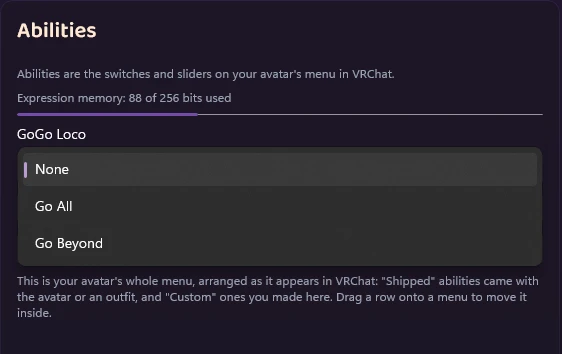
The first time you pick Go All or Go Beyond on an avatar, LAS fetches GoGo Loco’s package and adds it to the avatar, the same package the Creator Companion would install. Unity has to restart once for that, behind the scenes, so the first pick takes about a minute. When we tried it, Go All was on the avatar 51 seconds after the click. Switching between the versions after that takes a few seconds.
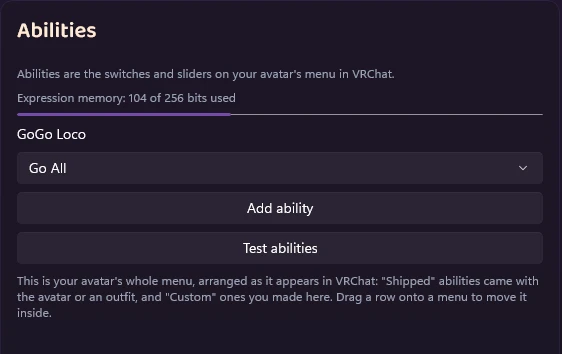
LAS installs GoGo Loco exactly as Franada publishes it, with its VRCFury prefab placed under the avatar the way GoGo Loco’s own Add Prefabs window places it. GoGo Loco is included on the Free plan like every other ability.
When the avatar came with GoGo Loco
Open an avatar that already has GoGo Loco and the dropdown tells you before you touch anything: it already reads Go All or Go Beyond instead of None.
If you leave it alone, nothing changes. If you pick something, LAS takes over, so there is only ever one copy:
- The avatar’s own copy is switched off, never deleted. It stays in the avatar’s files exactly as the creator made it, and it is left out of the upload.
- If the avatar’s files already include GoGo Loco’s package, as many Booth avatars do, LAS uses those files and downloads nothing, so there is no minute-long first install.
- If those files are an older copy without the VRCFury version, LAS stops and says so instead of installing a second, clashing copy. Your options are keeping the avatar’s own GoGo Loco (it is still working) or asking whoever set up the project to remove the old copy.
- If the avatar has GoGo Loco built into its animation settings (the old manual install), LAS shows a note under the dropdown that a pick would give the avatar two copies. It does not touch that install.
Try the poses before you upload
GoGo Loco’s menu is mostly pictures. Most of its buttons have no text at all, because the words are drawn into the icons. So a test that only lists names shows you a column of blank buttons.
In LAS, Try it runs your avatar live, with the same menu you will get in VRChat, icons included. GoGo Loco is there as its own entry:
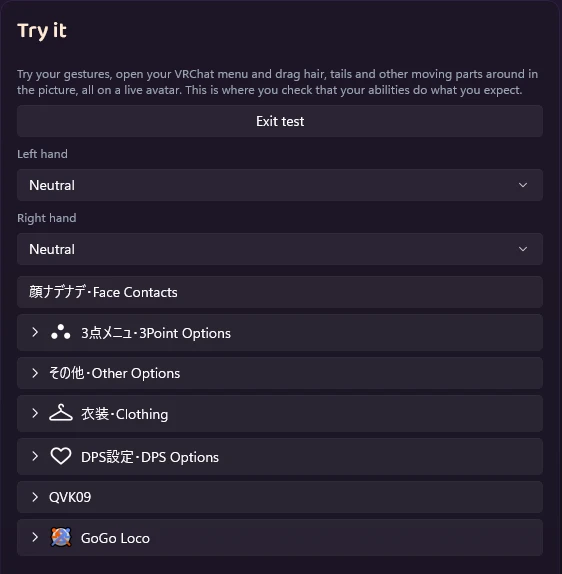
Open it and you get GoGo’s own icons: emotes, poses, its settings, the play space radial and the stationary lock. Open the poses (the seated figure) and then a group of them:
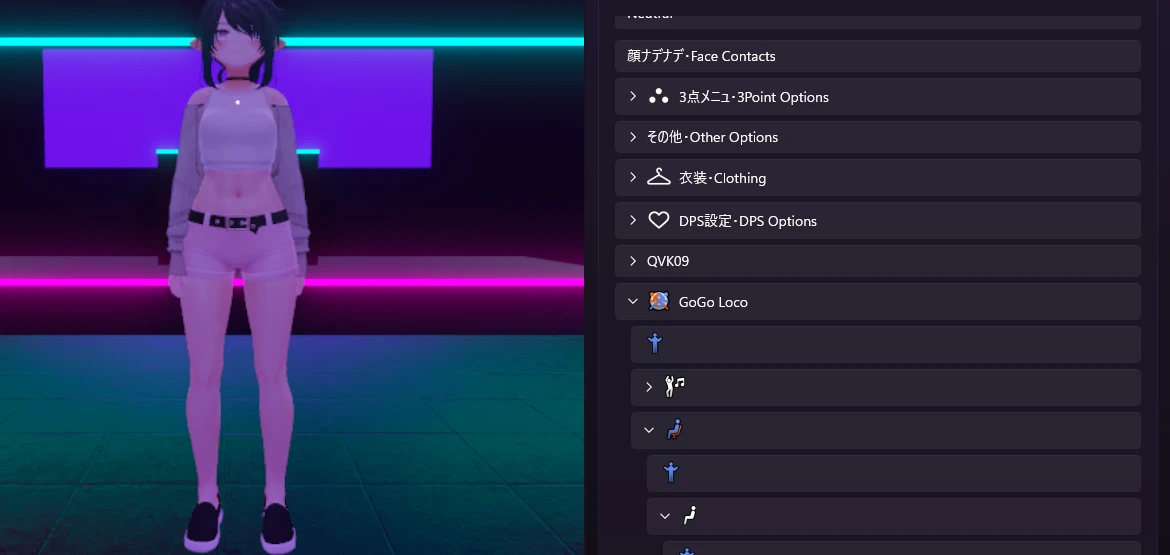
Press one, and the avatar in the preview moves into it:
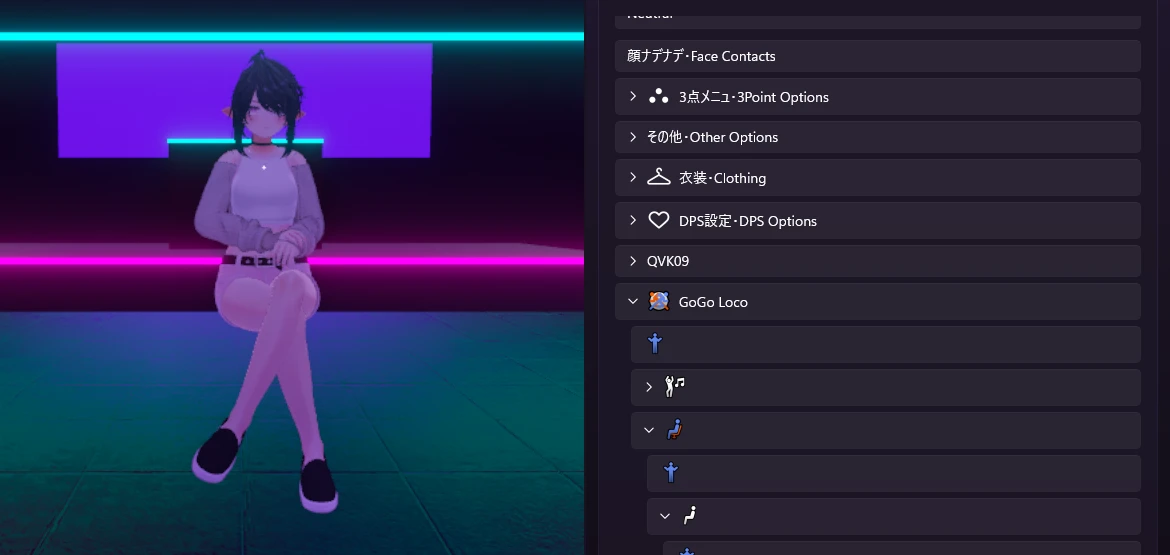
That is the whole check, before anyone else sees the avatar. More on what a test like this can and cannot tell you is in our guide to testing a VRChat avatar without uploading, and the Try it controls are covered in the testing section of the LAS docs.
Changed your mind?
Every pick is a step in the avatar’s History, named in plain words:
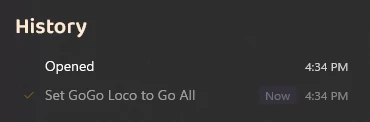
Undo the first pick and the avatar goes back to exactly how it shipped: LAS’s copy comes off, and a GoGo Loco the avatar came with is switched back on. Picking None is different: it takes every copy off, including the avatar’s own, and keeps it that way.
Expression memory
The memory reading at the top of the Abilities panel counts GoGo Loco along with everything else. If an avatar goes over VRChat’s 256 bits, LAS says so and still lets you continue: VRCFury compresses the menu when it builds the avatar, which can make menus react a little slower in game.
If you would rather stay under the limit, hide an ability you never use. The panel tells you what a hide saves before you upload: on our test avatar, hiding the 3Point Options menu showed “Hiding frees 10 bits when you upload.” and took the reading from 104 to 94 of 256. Hidden abilities come back with one click. Everything the Abilities panel does is in the customizing section of the LAS docs.
Common GoGo Loco problems
These are the questions that come up again and again after an install, whichever way you installed it.
The avatar’s own AFK, sitting or lying animations changed. GoGo Loco brings its own standing, sitting, lying and AFK animations, and they take over from the ones the avatar came with. That is the point of it, but some creators make lovely custom idles. If you prefer the avatar’s own, GoGo Loco is not for that avatar. In LAS, undo or pick None and the originals are back.
The menu has GoGo Loco twice, or the poses fight each other. Two copies are installed: usually one the avatar shipped with and one added later. Remove one. LAS never installs a second copy, it switches the other one off.
There is no flying. Flying is only in Go Beyond. Switch versions.
GoGo Loco is not on the main menu page. A VRChat menu page holds eight entries. When the avatar’s menu is already full, VRCFury moves extra entries onto a Next page, and GoGo Loco is often the one that lands there. Hiding one ability you do not use brings it back to the first page.
The first pose shoots the avatar into the air. GoGo Loco’s own documentation traces this to the avatar’s armature not starting at the center of the scene. That is a detail of how the avatar was built, so the fix belongs with the avatar’s creator. GoGo Loco’s Discord is also very helpful with it.
Hands stopped working, or the viewpoint does not follow a pose. GoGo Loco’s documentation lists both for installs done by hand, when a controller lands in the wrong slot. The prefab route avoids them.
It works on PC but not on Quest. GoGo Loco itself supports Quest, but PC and Quest versions of an avatar are separate uploads. LAS uploads PC avatars today, so a Quest version still needs Unity. Our guide to VRChat upload errors explains what “PC only” means.
Quick answers
Is GoGo Loco free? Yes. There is an optional tip version on Booth, and the free version has everything.
Do I need VRCFury? For the easy prefab install in Unity, yes (or Modular Avatar for the other prefab). Every avatar project LAS sets up already includes VRCFury, so there is nothing to add.
Does GoGo Loco count toward my avatar’s performance rank? Barely. It is animations and a menu, not meshes or materials. What it does use is expression memory, 16 or 17 bits. If your rank is the worry, see how to fix a Very Poor avatar.
Can I remove it later? Yes. In Unity, delete the GoGo Loco object under the avatar. In LAS, pick None, or undo back to how the avatar shipped.
Does LAS change GoGo Loco? No. It installs Franada’s package as published and places the prefab the way GoGo Loco’s own tool does. If GoGo Loco helps you, consider the tip version on Booth.
Can I add my own dances to GoGo Loco? Not in LAS today. Swapping GoGo’s emotes for your own animations is a Unity job for now.
Try it on your own avatar
LAS is out in Early Access with a Free plan. Download it, open your avatar, and pick Go All. If you want to see everything else it does before you commit, the VRChat avatar editor overview walks through it, and the pricing section shows what each plan includes.
If GoGo Loco does something unexpected on your avatar, tell us in the Discord.