
You bought an avatar, followed a guide, pressed upload, and Unity answered with a wall of red text, or with nothing at all. This page decodes the VRChat Unity console errors people hit when uploading an avatar: what each line means in plain words, and the shortest fix for it. Almost every upload failure is one of about fifteen sentences, and they are all here, grouped so you can jump to yours.
Every entry follows the same pattern: the line you see, what it means, the fix in Unity, and whether it can still happen if you make your avatar without Unity. Most of these errors are about the Unity project, not about your avatar, which is worth keeping in mind as you read.
Read the first red line, not the last one
This one habit fixes more uploads than any single answer below, so it goes first.
Open the Console (Window, then General, then Console, or Ctrl+Shift+C). Turn off the yellow warning filter with the triangle button at its top right, so only red errors show. Then scroll to the top of the list, not the bottom.
Unity reports the first thing that failed and then every consequence of it, so the last line is usually just noise from the chain reaction. The first red line is the cause. Yellow warnings are almost always safe to ignore. Red errors are not.
Two more rules of thumb:
- A red error anywhere blocks everything. A broken script in a package that has nothing to do with your avatar still stops the whole build, because Unity refuses to build a project whose code does not compile. That is why the answer to so many strange upload errors turns out to be “you have an unrelated script error”: the SDK gives up early and reports something misleading.
- The SDK panel keeps its own list. The VRChat SDK’s build window shows a separate list of problems with the avatar itself, some with an Auto Fix button. Auto Fix is safe for the problems it offers to fix, but it is not a cure-all, and that list is not the same thing as the Console.
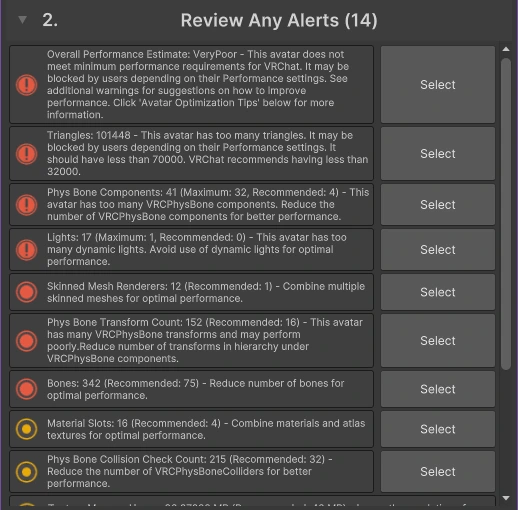
The list above is the SDK’s, from a real avatar. Performance alerts like these do not stop an upload on PC, they only describe the avatar’s rank. If a term on either list is new to you, the avatar glossary explains the common ones in a line each.
The upload button is greyed out or does nothing
This is the most frustrating case, because there is no error to read. The SDK’s upload area stays grey, or the button reacts to nothing. The usual causes, roughly in order of how often they turn out to be the answer:
- An unrelated compile error in the project. Check the Console as described above. Fix or remove the broken package, and the button comes back.
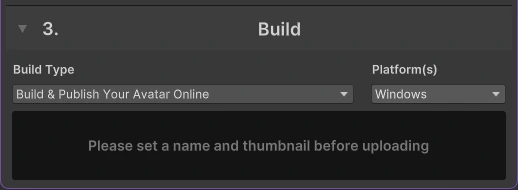
- No name or thumbnail yet. The SDK asks for both before it lets you publish, and says so under the button:
- No avatar selected, or no VRC Avatar Descriptor on it. The SDK only lists objects it recognises as avatars. See the descriptor entry below.
- Your account’s trust rank is too low. See the next entry.
- Outdated SDK packages. Open the project in the Creator Companion and update the VRChat packages.
- A Windows language setting. One forum thread traced a dead button to a non-English Windows locale, fixed by changing the Unicode UTF-8 option in Windows’ region settings. Another poster disputed it, so treat it as the last thing to try.
And the honest one: restarting Unity genuinely fixes a share of these, and nobody has a satisfying explanation why. If you would rather not diagnose a Unity project at all, that is what a VRChat avatar editor that runs without the Unity window is for.
“Not yet allowed to publish avatars” (trust rank)
What it means: this is not a bug. VRChat requires your account to be at least the New User trust rank before it can upload anything. Brand new accounts start below it, as Visitors.
The fix: play. Trust rank rises with time spent in VRChat, making friends and visiting worlds. There is no setting to flip.
In LAS: the same rule applies, because uploads go to VRChat under your account. No tool can skip it, ours included, which is also covered in the LAS questions and answers. LAS has no special message for it: the failed upload shows VRChat’s own reason.
“You need an Animator component” / “A VRC_Avatar Descriptor is required”
What it means: the object you are trying to upload is not set up as an avatar. The VRC Avatar Descriptor is the component that tells VRChat “this is an avatar”: where its eyes are, which face shapes are used for talking, and which animations it runs. It needs an Animator to attach to.
The fix: select the avatar’s top object, Add Component, and add VRC Avatar Descriptor. In the model file’s import settings, open the Rig tab, set Animation Type to Humanoid, and apply.
In LAS: you never add a descriptor yourself. LAS uses the ready-made avatar file that comes with the base, which already has one. A rig imported as Generic instead of Humanoid is also behind many “stuck in a T-pose” reports, covered further down.
Errors in the console, decoded
“Attempted to load the data for an avatar we do not own, clearing blueprint ID”
This is the most-searched line in the whole family, with one forum thread alone past 69,000 views, so it gets the most room.
First, what a blueprint ID is: the avatar’s permanent address on VRChat’s servers, something like avtr_79589db8-.... It is written into the avatar’s Pipeline Manager component the first time you upload, so that the next upload updates the same avatar instead of creating a new one. Favorites and avatar pedestals in worlds point at that address.
What the message means: the ID attached to your avatar belongs to an account that is not the one you are logged in with. There are three real cases:
- The files came from someone else, and their blueprint ID is still attached to the prefab. Creators usually clear it before selling, but not always, and projects passed between friends almost never are.
- You are uploading from a different account than the one that first uploaded this avatar, for example an alt.
- The field looks empty, but something else is failing. An unrelated compile error can make the SDK stop early and report this line instead. That was the answer for many people in the big forum thread, so read the Console’s first red line before anything else.
The fix: select the avatar, find the Pipeline Manager component, press Detach, then upload again. A new blueprint ID is created on upload. For case 3, fix the Console error first.
Uploading a second copy on purpose: detaching is also how you publish the same avatar a second time under a new name instead of overwriting the first one. Detach, rename, upload, and you have two separate avatars. Detaching never deletes the avatar that is already online.
In LAS: there is no ID field to manage. You name the avatar and choose who can use it, and re-uploads update the same avatar and keep its VRChat ID, so worlds and favorites still point at it.
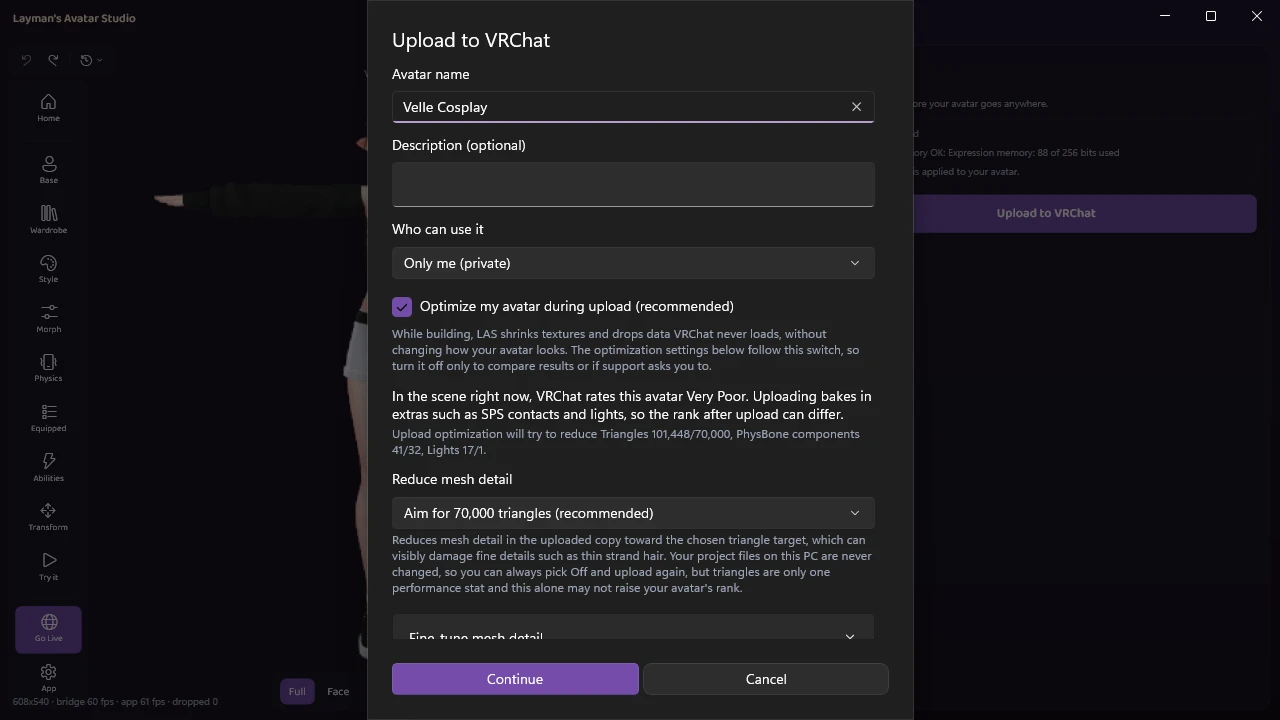
One case can still happen in LAS: an avatar first uploaded from another account can only be updated from that account. LAS tells you so in plain words instead of this message. If the avatar came from a Booth purchase, none of this applies, because you are the first one to upload it.
Missing scripts on the avatar
The line you see: “The referenced script on this Behaviour is missing” in the Console, or components on the avatar that read “Missing (Mono Script)” and “The associated script can not be loaded” in the Inspector.
What it means: part of the avatar points at a piece of code that is not in your project, usually a tool or shader editor the seller had installed and you do not. On a very old asset it can also be Dynamic Bone, a physics tool VRChat replaced with its own PhysBones years ago and no longer accepts at all. Outfits and accessories carry these as often as bases do, which is one of the less obvious things that can go wrong when you add clothes to an avatar.
The fix: either add the package the avatar expects (the product page usually lists its requirements), or remove each missing component with the three-dot menu, Remove Component. On a body with dozens of parts that is tedious, and paid remover tools exist to do it in one click, but the manual route is free and works.
In LAS: the same rule applies. LAS does not remove missing scripts for you, and the VRChat SDK still reports them when the avatar is built, so the fix is the same: add the package the product lists.
The avatar is pink, or a shader is missing
What it means: pink is the color Unity paints a material whose shader is not in the project. It is not a color problem, and recoloring will not fix it.
The fix: import the shader the product lists (lilToon and Poiyomi are the common ones), at the version it asks for. The materials usually snap back once the shader exists. If they stay pink, reassign the shader on each material.
In LAS: every project comes with tested versions of lilToon and Poiyomi, and items that bundle their own copy use those instead. For any other shader, LAS checks the materials after you put an item on and names the ones that will show up magenta, so you know which store page to check. For changing colors on purpose, recoloring an avatar live is its own guide.
“Error building avatar” on a specific Unity version
What it means: VRChat supports one exact Unity version at a time, currently 2022.3.22f1. Projects opened in a different version, like the 2022.3.6f1 behind two of the forum’s biggest threads, can fail at build time, and a project half-migrated between versions fails in stranger ways.
The fix: open the project through the VRChat Creator Companion with the supported version, and let it update the packages. If the project has been dragged across two or more Unity versions, starting a fresh project and bringing the avatar in is honestly often faster than repairing it, which is also why a way to undo avatar changes safely is worth having before you experiment.
In LAS: cannot happen. LAS installs the exact Unity version it needs once, during setup, and manages it from then on.
Japanese or accented characters in your user name, PC name or file path
What it means: some parts of the Unity and VRChat toolchain still expect plain English letters in file paths. A Windows user name like 太郎, a folder called デスクトップ, or an accented letter in a project path can break the build. The symptoms are confusing: “Illegal byte sequence”, a bare NullReferenceException during build, or a build that simply stops without explanation.
The fix: move the Unity project to a path with only English letters and numbers, for example directly under C:\VRChat\. If your Windows user name itself is the problem, the heavy fix is creating a new Windows user with an English name and working from that account.
In LAS: product archives with Japanese file names are unpacked with the right encoding on their own. We have not measured whether a non-English Windows user name affects anything, so we make no claim either way.
“Upload failed”, a request timed out, or the transfer dies partway
What it means: these are network failures, not avatar failures. Your connection, VRChat’s servers or something in between dropped the transfer.
The fix: retry, and check VRChat’s status page if it keeps failing. Try without a VPN, and, strangely, some people in the biggest forum thread only succeeded with one. A failed upload does not replace the version already online, so retrying is safe.
In LAS: can still happen, because the internet is still the internet. LAS says the upload failed on the connection, nothing is left half uploaded, and retrying is the fix.
Too many expression parameters (expression memory)
What it means: every menu toggle, slider and gesture setting that other players need to see is stored in a small shared memory, and VRChat caps it at 256 bits per avatar. A plain toggle costs 1 bit, and a slider or a multi-option switch costs 8. Each add-on you install brings its own settings, so an avatar with several outfit toggle systems, a face-tracking kit and a few gimmicks can run out. The SDK’s alert list flags it, and the upload will not go through until it fits.
The fix: open the avatar’s Expression Parameters asset and look for settings that do not need to be shared with other players (turn off their Synced option) or add-ons you no longer use (remove them). Some add-ons offer a compressed mode that packs their settings into fewer bits.
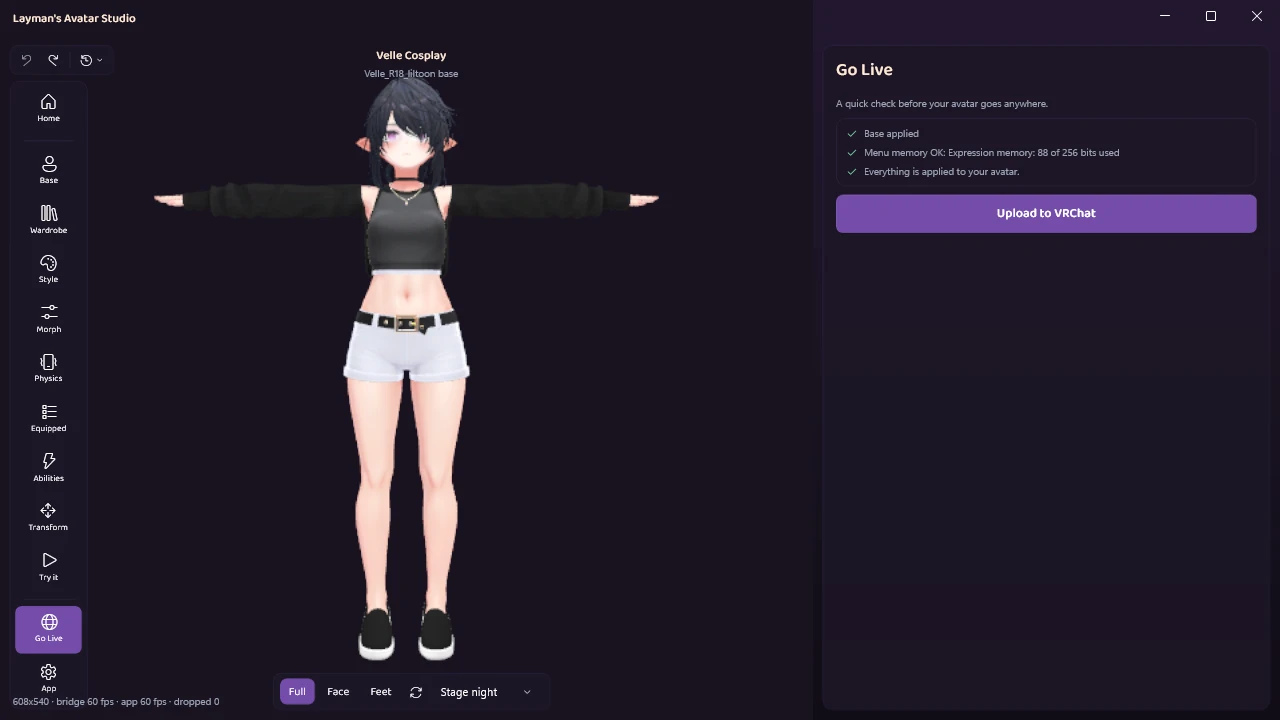
In LAS: the limit is VRChat’s, so it still applies. The Abilities panel shows the count at all times, and Go Live repeats it while you are under (the cover picture reads 88 of 256 bits). Hiding a menu entry frees its bits at upload, unless something besides the menu uses them. Over the limit, VRCFury compresses the menu while building, and the upload stops with an error only if even that cannot fit it.
It uploaded, but something is wrong
These are the problems that show up after the upload succeeded, which is exactly why they are confusing.
The avatar is stuck in a T-pose in game
What it means: the avatar is not animating, so it stands with its arms straight out. The usual cause is a rig imported as Generic instead of Humanoid, or animation layers on the descriptor that were overwritten or cleared.
The fix: set the model’s rig to Humanoid in its import settings and apply. Then check the descriptor’s Playable Layers and reset any that point at nothing, and upload again.
It says PC only after a Quest upload
What it means: PC and Android (Quest) versions of an avatar are separate uploads that share one blueprint ID. The PC version went up, and the Android one did not.
The fix: in the SDK’s builder, switch the platform to Android, fix whatever the Android validation complains about (it is much stricter), and publish again with the same blueprint ID.
In LAS: honestly, LAS does not build Quest or Android avatars today. Uploads from LAS are PC avatars.
It uploaded, but people see a stand-in instead
What it means: not an upload error at all. VRChat rates every avatar’s performance, and players who set their minimum displayed rank higher than your avatar’s see a fallback instead, while players on mobile hide Poor and Very Poor avatars by default.
The fix: find the stat holding your rank and bring it under the line. That has its own post: how to fix a Very Poor avatar, with the manual route in full.
Before the error even appears: the setup that breaks first
Some people never reach the Console, because the tools refuse to start. The most common version is the VRChat Creator Companion opening to a blank screen, which was one of the busiest help threads of the year. It is a problem with the Creator Companion app, not with your avatar: updating or reinstalling the Creator Companion is where the fixes start.
Notice the pattern this whole page has been circling. The blank screen, the compile errors, the version mismatches, the missing packages: nearly all of them are about the Unity project around your avatar, not about the avatar itself.
Test before you publish
The habit that prevents half this page is testing before you publish.
- Build & Test in the SDK’s Build Type menu builds the avatar and puts it in your game client locally, without publishing it. You can wear it in a world and check everything, and nobody else sees it.
- Emulator tools such as Gesture Manager run the avatar’s gestures and menus inside Unity itself, with no upload at all. They need installing into the project, but they are the fastest loop once they are set up.
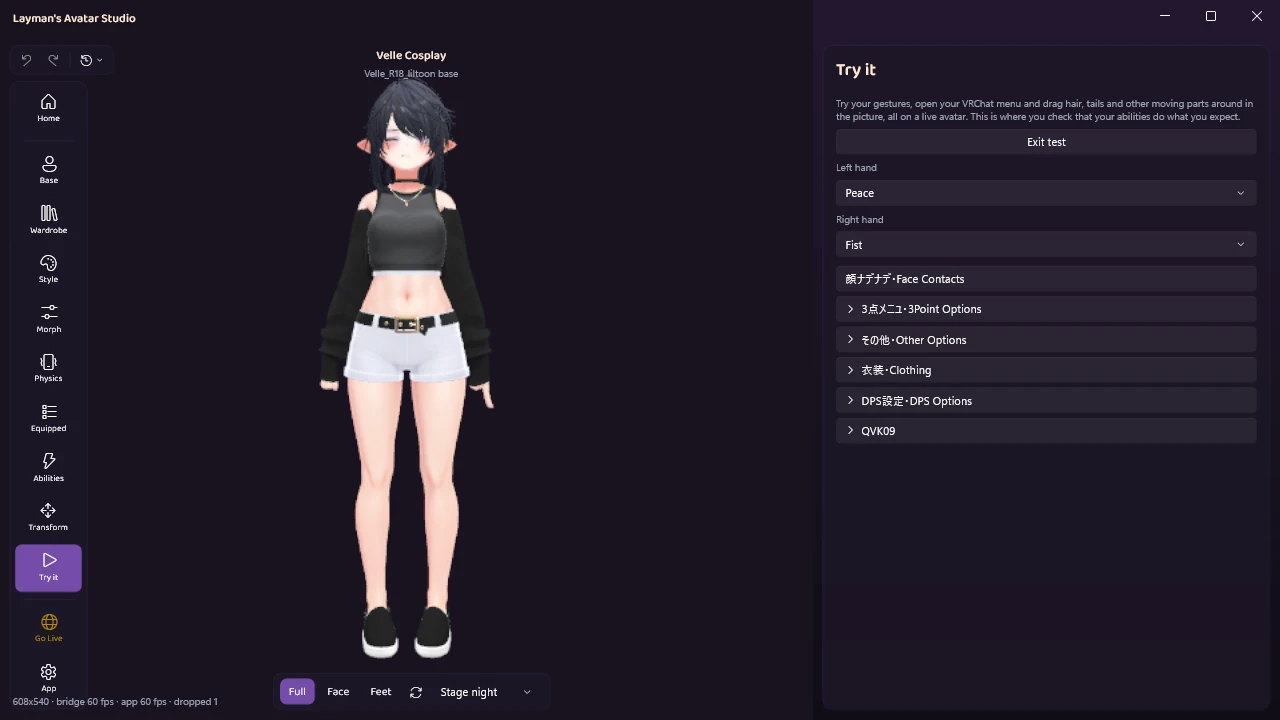
LAS’s Try it does the same job without the setup: it runs the avatar live, with its gestures and its own menu, right in the app. The Try it docs walk through what you can check.
Which of these can still happen in LAS, and which cannot
Layman’s Avatar Studio builds and uploads your avatar through the official VRChat SDK, but runs the Unity side for you. That removes a whole class of errors, and it leaves some. Here is both halves, honestly.
Cannot happen, because there is no project for you to break:
- The greyed-out SDK button. Go Live has a readiness check instead, as in the cover picture. The upload button unlocks once a base is applied and every change is applied to your avatar, and when it is locked, the check says which line is waiting and what to do. The menu memory line is a warning, never a lock.
- Unrelated compile errors. You never open or manage the Unity project yourself.
- A missing descriptor or Animator. LAS uses the base’s ready-made avatar file, which already has them.
- The wrong Unity version. LAS installs the exact editor it needs, once.
- Blueprint ID confusion. Re-uploads update the same avatar and keep its ID.
- Japanese file names in product archives. They are unpacked with the right encoding.
- The Creator Companion. There is none to open.
Can still happen. LAS names most of these in plain words, and shows VRChat’s own reason for the rest:
- Trust rank below New User (shown with VRChat’s own reason).
- Updating an avatar first uploaded from a different account.
- A VRChat login that is no longer valid. LAS asks you to log in again in Unity’s VRChat panel, and never sees or stores the login itself.
- VRChat’s own checks refusing the avatar, with the technical reason shown.
- Too many menu abilities for VRChat’s expression memory limit, when even compressing the menu cannot fit them.
- A network failure.
- A performance rank lower than you hoped, which the upload’s own report covers.
- The small number of products with no standard outfit skeleton, which LAS tells you need manual setup rather than guessing. Outfits that do not follow the body covers that territory.
The upload docs cover the whole Go Live flow, and every “can still happen” case has an entry in LAS troubleshooting. And the honest limit, once more: LAS uploads PC avatars only.
Quick answers
Does detaching the blueprint ID delete my avatar? No. It only removes the link between your local files and the uploaded avatar. The avatar already on VRChat stays exactly where it is, and your next upload creates a new one.
Can I upload an avatar without Unity? Not without Unity running somewhere, because the official SDK builds inside it. What you can skip is working in Unity yourself, which is what LAS does: it runs the Unity side behind the scenes.
The SDK said the build succeeded, but the avatar is not in my menu. Give it a minute or two, then look under Avatars, Personal. New uploads can take a moment to appear.
Can I fix a project a friend sent me? Yes. Detach the blueprint ID first, or the upload will fail with the clearing-blueprint-ID message, then fix whatever the Console reports.
Do I need to pay for a missing-scripts remover? No. Removing the components by hand is free. The paid tools only save time on avatars with many parts.
Skip the console next time
LAS is in Early Access with a free plan. Download it for free, open your avatar, and Go Live tells you in plain words what is ready and what is not before anything uploads. The plans show what each one includes.
If you hit a message that is not on this page, bring the exact words to the Discord and we will help you decode it.